

The Subtitle Struggle
I spent three hours last Tuesday manually syncing text layers to a single thirty-second short. My audio track was crystal clear, but my rendering software kept crashing every time I adjusted a keyframe. You quickly realize that typing out speech word-by-word destroys your creative momentum completely.
When searching for the best free AI captioning tools, CapCut offers the most powerful completely free tier with unlimited basic exports and no watermarks on core features. VEED provides excellent browser-based convenience but restricts free users to short, watermarked clips. Submagic dominates the trendy animated style category but strictly requires a paid subscription after a tiny three-video trial.
Adding dynamic text to your videos is no longer optional for audience growth. Most viewers watch content entirely on mute while commuting or sitting in public spaces. If you fail to hook them visually within the first three seconds, they simply swipe away.
Freelance editors often start by downloading every subtitle generator they can find on mobile app stores. You upload your heavy video file, wait ten minutes for processing, and suddenly hit a massive paywall blocking your export. The app usually slaps a giant, ugly watermark right across the center of your face.
Finding a platform that actually processes audio accurately without holding your final render hostage changes everything. You need a stable system that recognizes distinct accents, punctuation, and natural speech pauses automatically. The right software handles the tedious alignment work so you can focus strictly on the visual aesthetic.
The Core Mechanics of Auto-Transcription
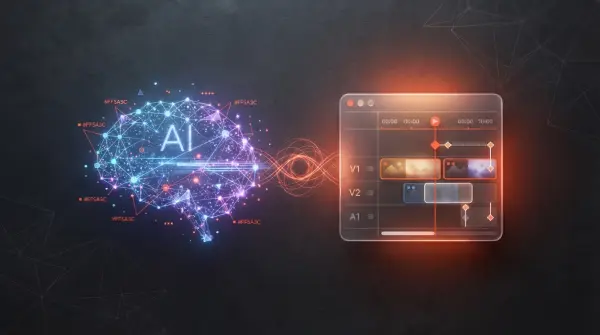
How do these automated systems actually convert messy human speech into perfectly timed typography? They rely on advanced neural networks trained specifically on massive datasets of diverse audio samples.
The software first isolates the vocal frequencies from background noise, music, or wind interference. It breaks your sentences down into individual phonemes and maps them against a vast linguistic database.
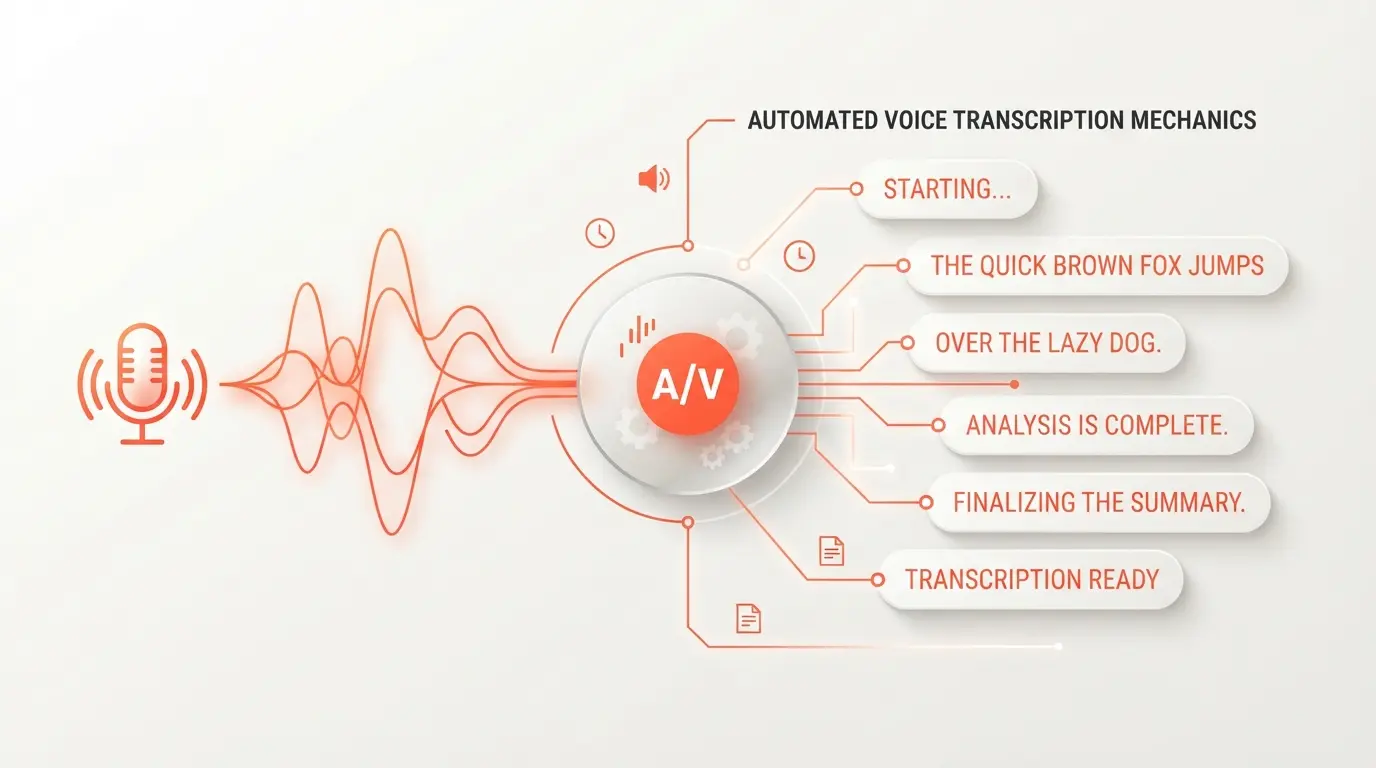
Many modern applications utilize variations of open-source models to process this data rapidly. These models predict the most logical sequence of words based on contextual phrasing, rather than just guessing isolated sounds. This contextual awareness explains why modern platforms correctly spell complex names or industry jargon that older software always misspelled.
The best free AI captioning tools go beyond simple transcription by mapping the generated text to exact timecodes on your timeline. They calculate the precise millisecond a word is spoken and generate a dynamic text box that appears and disappears flawlessly. This word-level timing allows editors to apply kinetic animations that highlight individual words exactly as they are pronounced.
The Psychology of Kinetic Typography
Styling your text properly influences audience retention metrics more than you might assume. When text remains static at the bottom of the screen, the human eye quickly ignores it.
We naturally track movement and color changes. Highlighting a single spoken word with a bright accent color forces the viewer to read along at your exact speaking pace. This synchronized reading experience creates a rhythmic flow that holds attention incredibly well.
Adding subtle bounce animations or slight rotational shifts makes the typography feel alive. When you drop a loud sound effect, a sudden shake animation on the text visually reinforces the audio impact. The top creators understand that subtitles are a core part of the visual storytelling, not just an accessibility afterthought.
Breaking Down the Major Contenders
Different platforms prioritize completely different aspects of the editing workflow. You have to match the software architecture to your daily production habits.
CapCut currently dominates the mobile and desktop editing market by offering an incredibly generous set of features without demanding a subscription. You can import massive high-resolution video files directly into the timeline and generate word-by-word text tracks instantly. The platform supports dozens of languages and provides a massive library of highly customizable text templates. While some specific animated presets sit behind a Pro paywall, the core transcription engine and basic styling options remain entirely free. You can export a clean, unwatermarked video straight to your hard drive.
VEED takes a radically different approach by hosting the entire editing environment directly in your web browser. You never have to install heavy software, making it highly appealing for creators working on older laptops or borrowed computers. The browser interface is remarkably clean and intuitive for immediate, zero-friction editing. However, the permanent free tier comes with severe limitations for serious production workflows. Free users face short export caps, an unavoidable VEED watermark, and strict limits on how many subtitle minutes they can generate each month.
Submagic built its entire reputation on mimicking the hyper-kinetic, colorful text styles popularized by massive social media personalities. The platform automatically highlights keywords with bright colors, adds relevant emojis, and creates aggressive bounce animations. While it produces incredibly engaging short-form content, calling it a free tool is slightly misleading. They offer a very restrictive trial allowing only three short videos, which all export with a prominent watermark. You must purchase a monthly subscription to actually utilize the platform for professional publishing.
Mobile App vs Web Browser Workflows
Editing on a smartphone feels incredibly intuitive because you can tap and drag text boxes with your fingers. The tactile nature of mobile apps allows for very fast repositioning of visual elements.
However, mobile applications struggle heavily with file management and local storage limits. When you process multiple 4K video clips, your phone rapidly overheats and runs out of space.
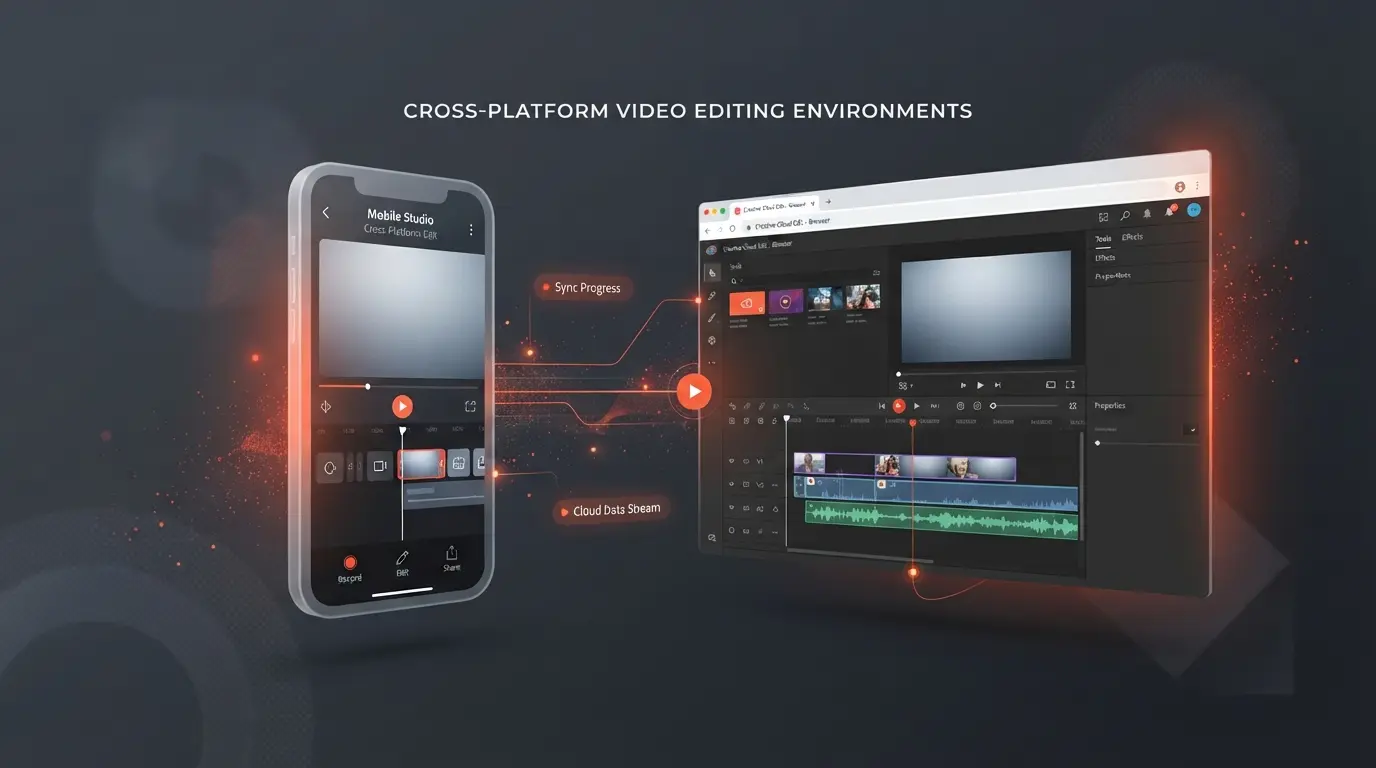
Desktop applications and web browsers offer infinitely better precision for adjusting individual keyframes. Using a physical mouse to trim the start and end points of a subtitle block saves a massive amount of frustration. Web platforms also handle the heavy rendering workloads on external cloud servers, keeping your local computer running smoothly.
If you handle heavy audio workloads alongside your visual editing, you should explore dedicated desktop audio platforms. Many creators read an ElevenLabs Voice Cloning/Dubbing Review to find synthetic voices that perfectly match their visual style. You can generate a voiceover track externally, import the audio file into a desktop editor, and instantly map text to the synthetic speech.
Feature Breakdown and Free Tier Limits
Let's look at exactly what you get without handing over your credit card information.
| Feature | CapCut | VEED | Submagic |
|---|---|---|---|
| Platform Type | Desktop & Mobile App | Web Browser | Web Browser |
| Free Tier Watermark | None (on core features) | Yes (unavoidable) | Yes (unavoidable) |
| Transcription Limits | Unlimited basic captions | 30 minutes per month | 3 videos (trial only) |
| Export Resolution | Up to 4K | Capped at 720p | Capped at 1:30s length |
| Animated Presets | Basic free / Pro upgrades | Standard options | Highly advanced/trendy |
| Export SRT Files | Yes (Desktop version) | Yes | No (requires paid) |
Video pacing directly influences whether the audience reads your text or scrolls past entirely. A strong understanding of CapCut vs Descript Video Editor Comparison helps you decide which interface handles rapid trimming better. Descript offers a unique workflow where you edit the video strictly by deleting words on a text document.
Practical Workarounds for Creators
I rarely rely on a single application for my entire post-production pipeline anymore. You can actually combine the strengths of different platforms to avoid paying multiple monthly fees.
- Open a free desktop editor and drop your raw footage onto the timeline.
- Run the free auto-captioning tool to generate your baseline text track with high accuracy.
- Review the timeline and manually fix any minor spelling errors or missed punctuation marks.
- Right-click the subtitle track and export the text data directly as a standalone SRT file.
- Import that clean SRT file into your primary professional editor to apply advanced graphic styles.
This specific method gives you the incredible speed of a dedicated transcription engine without forcing you to edit your entire project on a mobile app. You maintain complete control over the final color grading, graphic overlays, and audio mixing in your native software environment.
I constantly see creators placing their subtitles far too low on the screen. The algorithms on most vertical video platforms place usernames, captions, and music details right at the bottom edge. Always position your text right in the middle of the chest area so the platform interface never covers your words.
Sometimes you just need to pull a few engaging clips from a massive two-hour podcast interview. Evaluating an OpusClip Review AI Video Clipping Tool reveals how automated curation systems identify the best moments before you even start styling the text.
The Quality Assurance Checklist
Generating the text is only the first phase of the process. You must manually review the output before hitting publish, as AI models still struggle with heavy regional accents and rapid mumbling.
- ✅ Keep your text blocks short by allowing a maximum of two lines on the screen simultaneously.
- ✅ Use high-contrast fonts like bold white letters with thick black drop shadows for maximum readability.
- ✅ Manually adjust the timing breaks so the text appears exactly when you start speaking a new thought.
- ✅ Double-check the spelling of any specific brand names, locations, or technical terminology.
- ✅ Ensure the text placement does not block important visual elements or UI buttons on the final distribution platform.
For professional editors balancing visual rendering with complex audio cleanup, stepping outside of standard video suites makes a massive difference. Reviewing DaVinci Resolve Free vs Descript Paid provides deep insight into building a resilient hybrid workflow that costs absolutely nothing to start.
Frequently Asked Questions
Are auto-generated subtitles accurate enough for professional client work?
Yes, modern transcription engines achieve incredibly high accuracy rates on clear audio recordings. However, you must always perform a manual review to correct complex technical terminology, brand names, and minor punctuation errors before delivering files to a client.
Can I export raw SRT files from a free subtitle generator?
Several platforms, including the desktop version of CapCut, allow you to export your generated text as a standalone SRT file entirely for free. You can then import this small data file into YouTube, Vimeo, or a separate high-end video editor for further styling.
Why do my generated captions look blurry on social media platforms?
Blurry text usually happens when you export your project at a low resolution or a low bitrate to satisfy a free tier restriction. Platforms heavily compress video upon upload, so always try to export your final file in at least 1080p resolution to keep typography sharp.
What is the maximum character limit for on-screen text?
Industry standards strongly suggest keeping on-screen text between thirty-two and forty-two characters per line. Pushing beyond this limit forces the font size to shrink dramatically, making it completely unreadable for mobile viewers.
Does the font style actually impact viewer retention metrics?
Absolutely. Heavy, bold sans-serif fonts with thick contrasting strokes perform significantly better because they capture attention immediately. Thin, elegant fonts blend into the background footage and require too much mental effort to read during rapid video cuts.



Comments (0)
No comments yet. Be the first!
Leave a Comment