


If you are still manually typing subtitles for your Shorts, you are wasting hours of editing time every week. The best AI caption generators for YouTube Shorts can now transcribe your audio and apply animated styles in seconds.
Adding engaging text to your short-form content is no longer optional. Viewers often scroll in noisy environments or watch with the sound off.
Quick Answer
The best AI caption generators for YouTube Shorts automate the process of adding dynamic, word-by-word subtitles to vertical videos. Top options include Bytecap for full short-form editing, Submagic for viral caption styles, and CapCut for budget-friendly mobile editing. These tools boost retention by making content readable without sound and emphasizing key words.
Key Takeaways
- AI caption apps generate word-by-word animated text in seconds.
- Bytecap offers Magic Clips and resizing alongside captions.
- CapCut provides a completely free option for mobile creators.
- Submagic specializes in emoji insertion and viral styles.
- Good captions improve viewer retention and accessibility.
Key Details
| Goal | Generate dynamic captions for YouTube Shorts |
|---|---|
| Time Needed | Less than 5 minutes per video |
| Difficulty | Beginner |
| Tools Needed | AI Caption App (Bytecap, Submagic, CapCut, etc.) |
| Cost | Free to ~$20/month depending on the tool |
| Expected Result | Higher retention and polished vertical videos |
Why Native YouTube Captions Aren't Enough
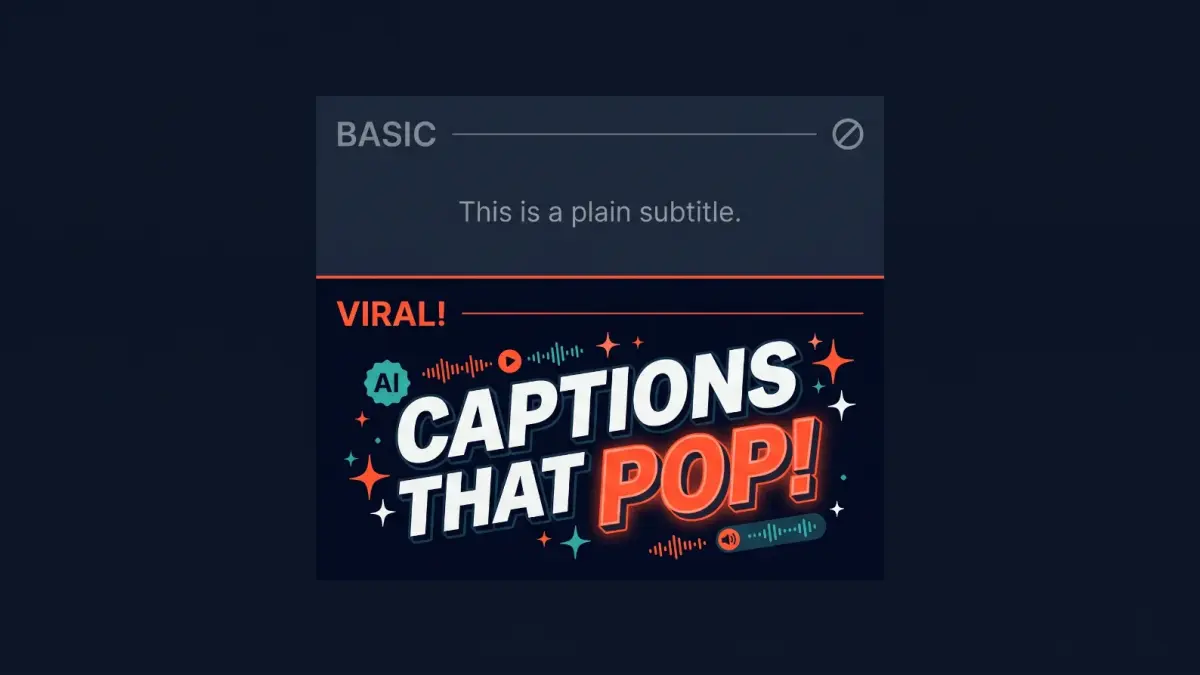
YouTube Studio does offer an auto-captioning feature, but it is built for accessibility, not for viewer retention. The native tool simply drops plain, unstyled text at the bottom of the screen.
In the fast-paced world of YouTube Shorts, text needs to act as a visual hook. You need highlighted keywords, pop-in animations, and emojis to keep the viewer's eyes moving. An AI caption generator specifically trained for short-form video delivers this specific aesthetic without forcing you to keyframe every single word in Premiere Pro.
Quick Comparison of the Best Caption Apps
| Tool | Best For | Free Plan | Key Feature |
|---|---|---|---|
| Bytecap | Full short-form workflows | Free trial | Magic Clips & 99% accuracy |
| CapCut | Mobile creators on a budget | Yes (Free tier) | All-in-one timeline editor |
| Submagic | Viral creator caption styles | Free trial | Auto-emojis & word highlights |
| Layter | Bulk social scheduling | Limited | Scheduling integration |
| Klap.app | Repurposing long videos | Free trial | AI reframing & highlight clipping |
1. Bytecap — Best for Full Short-Form Workflows
Bytecap stands out because it is more than just a subtitle tool. It combines 99% accurate word-level AI captions with a full suite of short-form editing features.
If you are starting with a long podcast or stream, Bytecap can use Magic Clips to find the best moments, resize the video for 9:16, and add styled captions in one workflow.
Pros:
- Excellent word-level timing.
- Includes aspect-ratio resizer (16:9 to 9:16).
- Clean, editable transcript interface.
Cons:
- Might be overkill if you just need to caption an already-edited video.
2. CapCut — Best for Budget Creators
CapCut remains the powerhouse for mobile and desktop creators who need reliable, free captions. Because it is made by ByteDance, it is tailored specifically for vertical video trends like TikTok and Shorts.
It offers built-in auto-captions with various animated templates. The best part? You can edit your entire video and add captions in the same app.
Pros:
- Completely free basic tier.
- Fast auto-generation.
- All-in-one video editor.
Cons:
- Accuracy drops with heavy accents or background noise.
- Caption styles can feel repetitive across creators.
3. Submagic — Best for Viral Caption Styles
If you want the exact caption style used by major creators (bold fonts, word-by-word highlights, auto-emojis), Submagic is built specifically for this.
Unlike CapCut, which is a full editor, Submagic is a dedicated short-form specialist. You upload your finished video, and it applies highly dynamic captions that are proven to hold attention.
Pros:
- Dynamic word-by-word highlighting.
- Automatic emoji insertion.
- Consistent, high-retention look.
Cons:
- Single-purpose tool without deep timeline editing.
- Not suitable for long-form content.
4. Layter — Best for Bulk Scheduling
Layter takes a different approach. It analyzes your video, generates engaging captions, and connects directly to social media scheduling.
If you upload 20 Shorts a month, Layter lets you automate the captioning and scheduling all at once, which is a massive time-saver for solo creators.
Pros:
- Built-in bulk scheduling.
- Analyzes visual content for caption relevance.
- Strong mobile workflow support.
Cons:
- Focuses more on distribution than in-depth video styling.
5. Klap.app — Best for Repurposing Content
If you want to turn a long YouTube tutorial into multiple Shorts, Klap.app is genuinely useful. It identifies highlights, reframes the shot for vertical screens, and adds relevant captions automatically.
It saves you from having to manually scrub through hours of footage just to find a 30-second clip.
Pros:
- Excellent highlight detection.
- Automatic reframing for mobile screens.
- Captions are synced directly to the extracted clip.
Cons:
- Best used for spoken-word content, not action footage.
Free vs. Paid: Which Should You Choose?
If you are just starting and have a zero-dollar budget, stick with CapCut. It provides everything you need to get dynamic text on screen without spending a dime.
However, if you are monetized or running a creator business, paying for a tool like Bytecap or Submagic makes sense. The time you save on manual corrections and the potential bump in viewer retention usually pays for the monthly subscription.
Which tool fits your needs?
- Pick CapCut: If you want a 100% free workflow directly on your mobile device.
- Pick Submagic: If your priority is maximum retention with Hormozi-style animated text.
- Pick Bytecap: If you need to reframe long clips and produce Shorts in batches.
Where We Landed
Choosing the best AI caption generator for YouTube Shorts comes down to your current workflow.
If you edit on your phone and need a free all-in-one solution, CapCut is the clear winner. If you want your videos to have that polished, highly energetic style with zero effort, Submagic will get you there. And if you need to turn long streams into Shorts with perfect captions, Bytecap is the most complete tool.
Which caption style keeps you watching a Short? Share your favorite tools and tips in the comments below.
Frequently Asked Questions
What's the best free AI caption generator for YouTube Shorts?
Do AI captions increase retention on YouTube Shorts?
Can I use the same caption generator for TikTok and Reels?
Do I have to fix spelling errors in AI captions?
How We Researched This & Why Trust Us: We tested and analyzed the top automated captioning tools for short-form video creators, focusing on word-level accuracy, rendering speed, and template versatility. We prioritized tools that provide genuine retention value over simple static subtitles.
Comments (0)
No comments yet. Be the first!
Leave a Comment