

The Editing Dilemma: Timeline Grinding vs Text-Based Magic
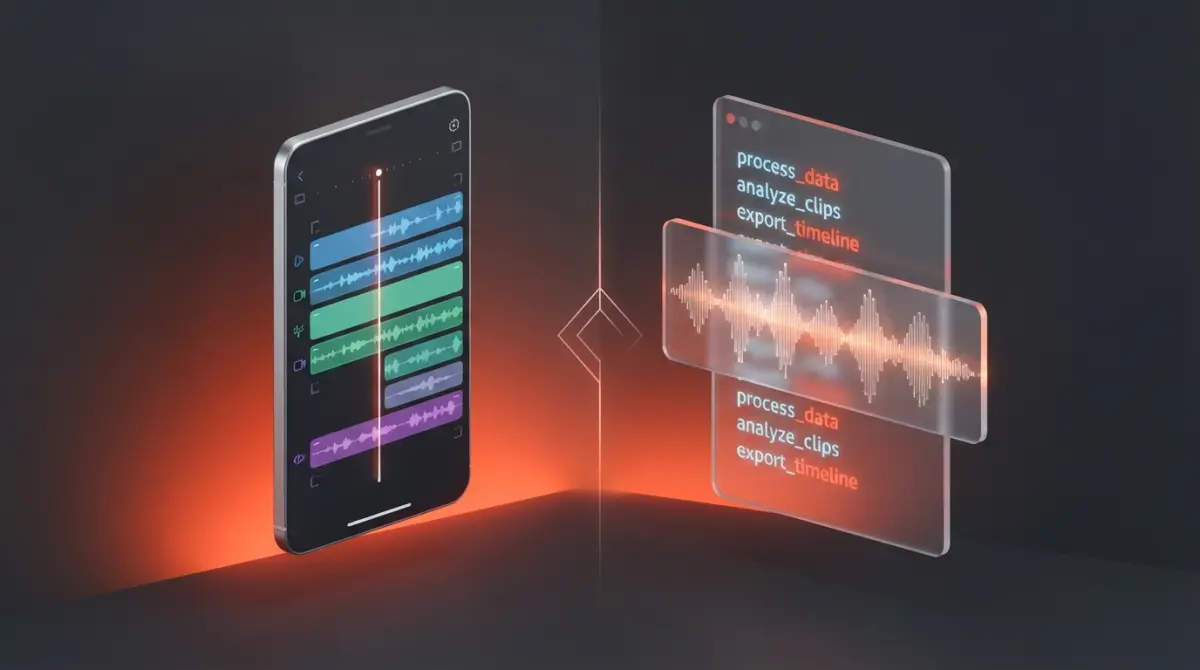
I constantly find myself staring at a massive, unedited video file, dreading the hours of cutting ahead. Editing software used to mean learning complex shortcuts just to trim out a few mistakes. Now, two completely different approaches dominate the creator space. CapCut offers a highly visual, mobile-optimized timeline experience. Descript turns your video into a text document, letting you edit media by simply deleting words. I've spent hundreds of hours inside both platforms testing their limits across various content formats.
Editing a long talking-head video traditionally involves zooming into an audio waveform, looking for silent gaps, and manually slicing the clips one by one. This repetitive process drains your creative energy before you even get to the fun part of adding graphics or music. Content creators often hit a massive wall trying to maintain a consistent publishing schedule while managing the heavy technical friction of post-production. You might easily spend an entire afternoon just cutting out filler words from a single solo podcast recording.
Audio syncing issues alone can delay a project by several days if you lack experience. When you choose the wrong editing interface for your specific content style, you end up fighting the software instead of finishing your video. A visually dense daily vlog requires completely different tools than a heavy-dialogue educational course. Understanding exactly how these platforms approach the editing workflow will save you countless hours of frustration down the road.
How Does the Core Editing Mechanism Actually Work?
The primary difference between these two tools lies in their foundational philosophy of how a video should be manipulated. CapCut relies on a traditional Non-Linear Editor (NLE) structure similar to Premiere Pro or Final Cut. You drag media onto a visual timeline, layer tracks on top of each other, and use a razor tool to make physical cuts at specific timestamps. It thrives on visual layering.
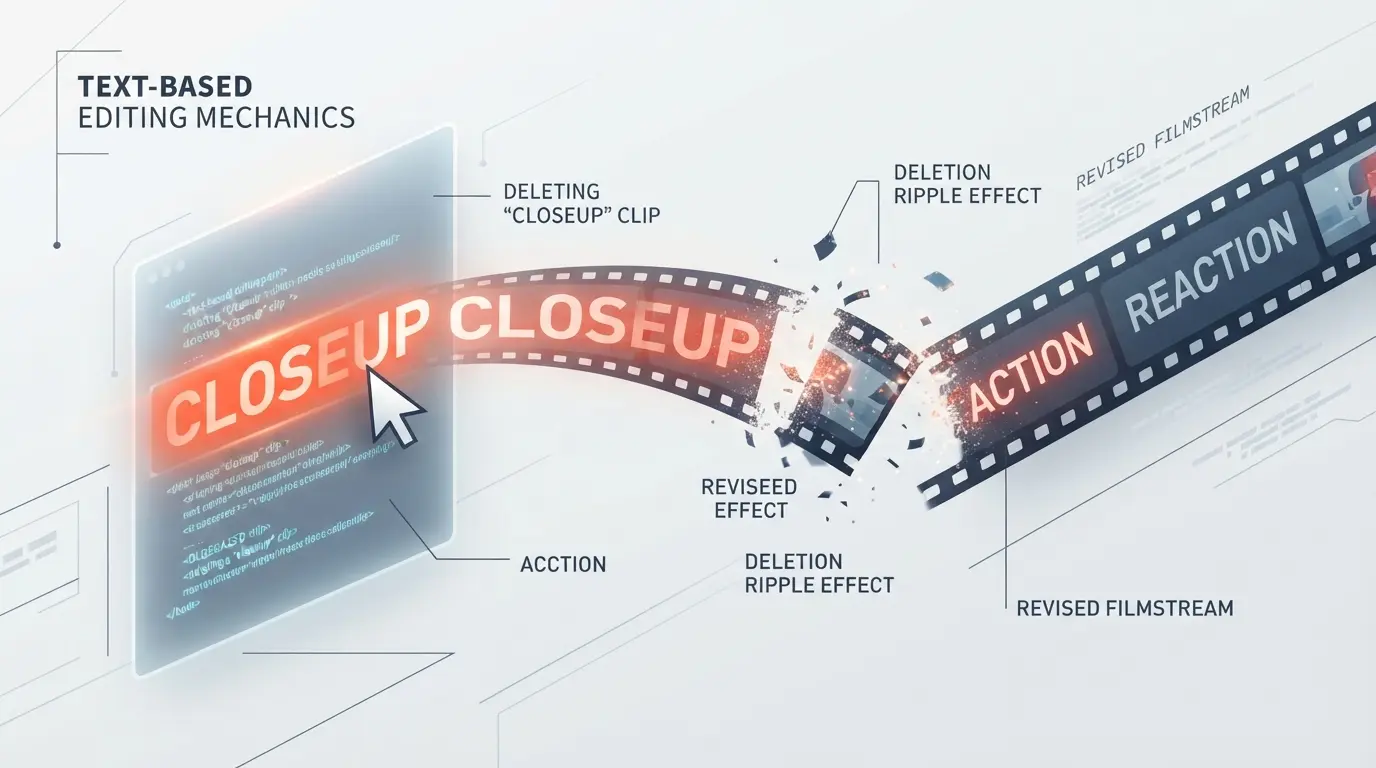
Descript entirely flips this concept on its head. When you import a video, the software immediately transcribes the spoken audio into a written text document. You read through the transcript just like a Word document. If you highlight a sentence and hit the delete key on your keyboard, the software automatically cuts that corresponding video and audio segment out of your timeline. This text-based paradigm completely changes the speed at which you can assemble a rough cut.
CapCut vs Descript: A Feature-by-Feature Breakdown
Choosing the right platform requires looking deeply at the specific features they prioritize. Both tools leverage artificial intelligence, but they apply it to completely different aspects of post-production.
Audio Repair and Vocal Processing
Poor audio quality will ruin a great video faster than bad lighting. Descript shines incredibly bright in this specific area with its Studio Sound feature. With a single click, it uses AI to isolate your voice, remove background echo, and regenerate missing frequencies to make a cheap microphone sound like it was recorded in a professional sound booth. It is widely considered one of the best AI tools for podcast editing for this exact reason. CapCut offers voice isolation and noise reduction, but the results often sound slightly robotic and aggressively compressed compared to Descript's natural vocal recreation.
Visual Effects and Trending Assets
CapCut completely dominates when it comes to visual flare. Because it shares DNA with TikTok, the platform features a massive, constantly updated library of trending stickers, automatic visual effects, body tracking animations, and dynamic text templates. You can apply a complex 3D zoom effect or remove a video background with one tap. Descript's visual capabilities are highly limited. It allows you to add text, insert basic shapes, and apply simple transitions, but it feels rigid and restrictive if you want to create highly engaging, fast-paced edits.
[Paste YouTube embed iframe code here]
Automatic Captions and Subtitles
Both platforms offer excellent automatic captioning, which has become mandatory for social media reach. CapCut allows for heavy customization of subtitle aesthetics, letting you easily replicate the popular dynamic word-by-word highlight styles seen across Instagram Reels. Descript handles captions elegantly as well, and because the core platform is built on transcription, fixing spelling errors in the captions is seamlessly tied to the main editing interface.
DIY Audio & Visual Hacks (Low-Cost Strategy)
You do not necessarily have to commit exclusively to one paid ecosystem. Many smart creators use a hybrid workflow to get the best features of both without spending a fortune on enterprise plans.
If you are working with zero budget, you can utilize the free tiers of both platforms strategically. First, run your raw talking-head footage through Descript. Use the text-based editor to quickly chop out all the dead space, bad takes, and filler words. Export this cleaned-up, highly condensed video file. Then, import that new file into CapCut. Use CapCut's robust visual timeline to add your b-roll, trending sound effects, dynamic captions, and color grading. This hybrid approach takes slightly more rendering time but gives you maximum creative control for free.
If you are exploring Descript alternatives, you will notice that very few offer the exact combination of text-editing and Studio Sound in one place, making this two-step hybrid method incredibly effective.
Comparison Table: Analyzing the Trade-Offs
| Feature Category | CapCut | Descript |
|---|---|---|
| Editing Style | Visual timeline (NLE) | Text document-based |
| Visual Effects | Massive library, trending templates | Very basic shapes and transitions |
| Audio Repair | Basic noise reduction | Industry-leading Studio Sound |
| Learning Curve | Moderate (standard video editing rules) | Very low (like using a word processor) |
| Best Format | TikToks, Reels, Vlogs | Podcasts, Interviews, Courses |
Matching the Editor to Your Specific Content Type
Selecting your primary tool comes down to the specific nature of your final product. CapCut is engineered for high-energy retention. If your videos rely heavily on visual stimulation, fast jump cuts matched to music beats, and constant screen graphics, you must use a timeline editor. It gives you frame-by-frame control over the exact placement of visual elements.
Conversely, Descript is built for narrative flow. If you are recording a deep-dive educational video, a solo podcast, or conducting a remote interview, the visuals are secondary to the information being spoken. For those formats, editing by reading text is undeniably faster. You can easily highlight an entire paragraph that went off-topic and delete it instantly without worrying about rippling multiple audio tracks.
Frequently Asked Questions
Which video editor is better for absolute beginners?
If you are completely new to video editing and prefer a traditional timeline, CapCut is incredibly intuitive and visually driven. However, if you are comfortable editing a Microsoft Word document, Descript might be easier. Descript allows you to edit audio and video simply by deleting words from a transcript, bypassing the learning curve of a traditional timeline.
Is CapCut truly a free video editor?
Yes, CapCut offers one of the most generous free tiers in the industry. You can use its core timeline editing features, transitions, and basic auto-captions without paying a dime, and export without a watermark. They do offer a "Pro" version that unlocks advanced AI effects, premium animations, and specialized filters.
Does Descript have a mobile app like CapCut?
No, Descript is primarily a desktop application (for Mac and Windows) and relies heavily on cloud processing. CapCut, on the other hand, started as a mobile app and dominates the smartphone editing market, making it the better choice if you want to shoot and edit on the go.
Which tool is better for editing podcasts?
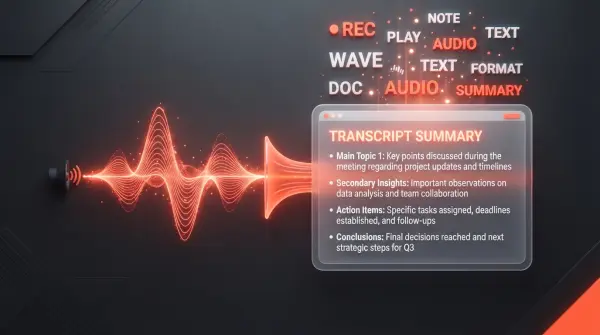
Descript is widely considered the industry standard for podcast editing. Its ability to automatically transcribe audio, assign speaker labels, remove filler words ("ums" and "ahs") with one click, and improve microphone quality using "Studio Sound" makes it vastly superior for long-form conversational content.
What is the Descript
Overdub is Descript's proprietary AI voice cloning technology. If you mispronounce a word or forget to mention a specific detail during recording, you can simply type the correct word into the transcript. Descript will generate the audio in your exact cloned voice, saving you from having to re-record in the studio.
Can I use CapCut for professional client work?
Yes, many freelance editors and social media agencies use CapCut Desktop for professional client work, especially for short-form content like TikToks, Reels, and YouTube Shorts. Its massive library of trendy transitions and kinetic text animations makes it perfect for fast-paced, high-retention vertical videos.



Comments (0)
No comments yet. Be the first!
Leave a Comment